If you are searching for how to set up parental controls on a Mac for a child, you are probably hoping for two things: fewer arguments and fewer surprises. I have tested these settings in a real home, where homework, Minecraft, forgotten passwords, and one mysteriously missing charger compete for attention. Apple’s built-in Screen Time tools can create useful boundaries without turning your child’s Mac into a locked filing cabinet.
The setup usually takes 20 to 30 minutes, plus another few minutes later to test the rules from your child’s account. You will need administrator access to the Mac, your child’s separate user account, and an Apple Account if you want Family Sharing features. The goal is not to eliminate screens. It is to make the computer safer, saner, and still within the family budget.
Start with the right Mac account
Before changing restrictions, confirm that your child does not use your administrator account. An administrator can install software, change important settings, and potentially undo limits. On macOS, open the Apple menu, choose System Settings, and select Users & Groups. Your child should have a Standard account with a separate password.
If you need to create one, select Add User, choose Standard, and use your child’s name. Let your child help choose a memorable password, but do not make it the same password used for email, gaming, or school accounts. Store the administrator password privately. In my house, putting that password on a sticky note near the Mac would be the technological equivalent of leaving the front door key under the mat.
Next, sign in to the child’s account once. This gives macOS a clean profile and lets you see which apps, browsers, and school tools are actually present. Remove old administrator accounts that nobody uses, especially guest profiles on a shared family computer. This step matters because many parental-control problems are really account-setup problems wearing a tiny disguise.
How to set up parental controls on a Mac for a child using Screen Time
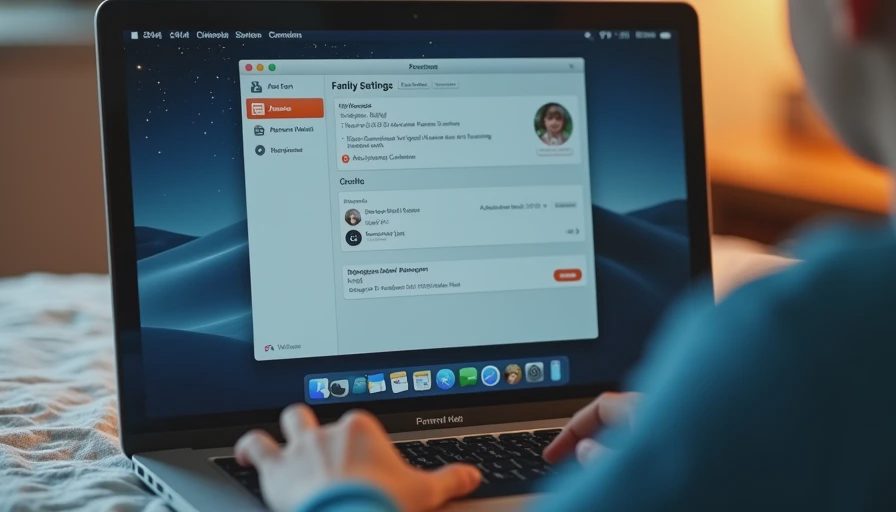
Apple’s Screen Time controls live in System Settings. Sign in to the child’s account, open System Settings, and select Screen Time. If the Mac is connected to Family Sharing, you may be able to choose your child’s name from your own device instead. For a first setup, I prefer working directly on the Mac because it makes each setting easier to verify.
Turn on Screen Time and create a Screen Time passcode that your child does not know. Do not reuse the Mac login password. Then review Downtime, App Limits, Communication Limits, and Content & Privacy Restrictions. Downtime can block most apps during sleep or school hours, while App Limits lets you set daily time allowances for categories such as Games, Entertainment, or Social Networking.
Choose schedules that fit your actual family. A rule that blocks everything at 7:00 p.m. sounds tidy until a school project is due at 7:15. I use a shorter evening window for entertainment while leaving school and reading tools available. Screen Time is most useful when it reflects the household routine rather than an imaginary family that never needs an exception.
Set content, web, and purchase boundaries
Content & Privacy Restrictions is where the setting that matters most often hides. Turn on the feature, then review allowed apps and features, web content, Siri and Dictation, and account changes. For a younger child, the web option to Limit Adult Websites is a practical starting point. You can add specific sites under Never Allow, but remember that filters are not perfect and should support conversation rather than replace it.
Under App Store, Media, Web, and Games, set age-appropriate ratings for apps, movies, television, and books. Disable in-app purchases if your child does not need them. If purchases are allowed, require a password every time instead of relying on a short approval window. A $4.99 game add-on is easy to approve accidentally when a child is excited and an adult is cooking dinner.
Also review Location Services, Account Changes, and Passcode Changes. Preventing account changes can keep a child from altering important settings. Do not disable every privacy feature automatically, though. Some school software, accessibility tools, or location-based services may need permission. Test the specific apps your child uses before announcing that the system is finished.
How to set up parental controls on a Mac for a child without creating daily battles
Limits work better when a child understands what they are for. Before turning on a strict schedule, explain which activities count as entertainment, when homework is exempt, and how to request extra time. Screen Time can offer a child the option to ask for more time, depending on the setup. Treat that request as a conversation, not a courtroom appearance.
For example, a 10-year-old might get 45 minutes of games on school nights and more time on Saturday. A six-year-old using a Mac for drawing may need an app limit for games but no limit on a school art program. The same household can have different rules for different ages, and that is not inconsistency. It is sensible configuration.
If your household is anything like mine, someone will try to bypass this. Check for extra browsers, newly installed virtual machines, USB drives, and alternate user accounts. Do not turn this into a spy mission. Explain that bypassing restrictions is a safety and trust issue, then adjust the rules if the original boundary was unrealistic.
How to set up parental controls on a Mac for a child and protect privacy
Parental controls can collect usage information, so use the least invasive settings that solve the problem. Screen Time reports show app and website activity, which can help identify a late-night gaming habit, but parents do not need to inspect every minute of a child’s day. Review trends together when appropriate, especially if you are trying to improve bedtime or school focus.
Use a unique administrator password and keep macOS updated. Turn on FileVault if the Mac contains schoolwork, family photos, or other private information. FileVault encrypts the startup disk, so someone who steals the computer cannot simply remove the drive and browse its contents. It does not make unsafe websites safe, and it does not replace a backup.
For extra protection, consider a family DNS service or router-level filter, but understand the tradeoff. Network filters cover more devices, while Mac controls can follow the child’s account. A service such as Apple Screen Time is included with the device; paid products can add reporting or cross-platform controls, often for roughly $30 to $100 per year. Start with the built-in tools before paying for features you may not use.

Test the rules and maintain them
After setup, sign out and sign back in as your child. Try opening a restricted website, launching a limited app, changing the clock, installing a free app, and using the Mac during Downtime. Ask your child to show you what happens when a limit is reached. Testing catches simple failures, such as a parent accidentally configuring the wrong user account.
Keep a small maintenance routine. Once a month, review Screen Time reports, remove abandoned apps, confirm the macOS version, and check whether school sites still work. Before vacations or exam weeks, adjust schedules rather than handing over the Screen Time passcode. If a rule repeatedly causes trouble, change the rule. A control that creates constant work will not survive a busy Tuesday.
Learning how to set up parental controls on a Mac for a child is less about finding one perfect switch and more about building a manageable system. Start with a Standard account, use Screen Time thoughtfully, limit purchases, protect privacy, and revisit the settings as your child grows. That approach keeps the computer useful for homework, creativity, and fun while giving parents a little more confidence at bedtime.



No comments yet — be the first to share a thought.