The best parental control router can make household technology calmer by putting schedules, filters, and device limits in one place. That does not mean every router advertised to parents deserves a spot in your home. I tested these systems with the usual family complications: a tablet that belongs to nobody, a game console that needs internet for updates, and a six-year-old who considers every glowing button an invitation.
A router-based system controls devices connected to your home Wi-Fi, including tablets, laptops, smart televisions, streaming sticks, and many game consoles. It cannot control what happens on cellular data, a friend’s Wi-Fi, or a device using a private virtual network. That distinction matters. A router is a useful layer of supervision, not a substitute for conversations, device-level settings, and reasonable screen-time expectations.
What a Parental Control Router Actually Does
Most family routers let you create profiles such as “Ava’s devices” or “Kids’ screens,” then assign rules to each profile. Here is the setting that matters: pause the profile, rather than hunting through the network for individual devices. A bedtime schedule might turn off internet access at 8:30 p.m. on school nights while leaving a parent’s phone and a medical device connected.
Useful controls usually include content filtering, bedtime schedules, internet pauses, guest networks, and basic activity reporting. Some systems categorize websites into groups such as adult content, gambling, social media, and gaming. Categories are convenient, but they are not perfect. A homework site can be classified incorrectly, and a blocked game server can produce a dramatic speech about educational injustice.
The best parental control router for younger children often emphasizes simple schedules and broad filters. Older children may need more detailed controls, device-specific rules, and transparent conversations about what the system can see. Avoid products that promise to identify every message or guarantee complete online safety. Those claims usually create more confidence than protection.
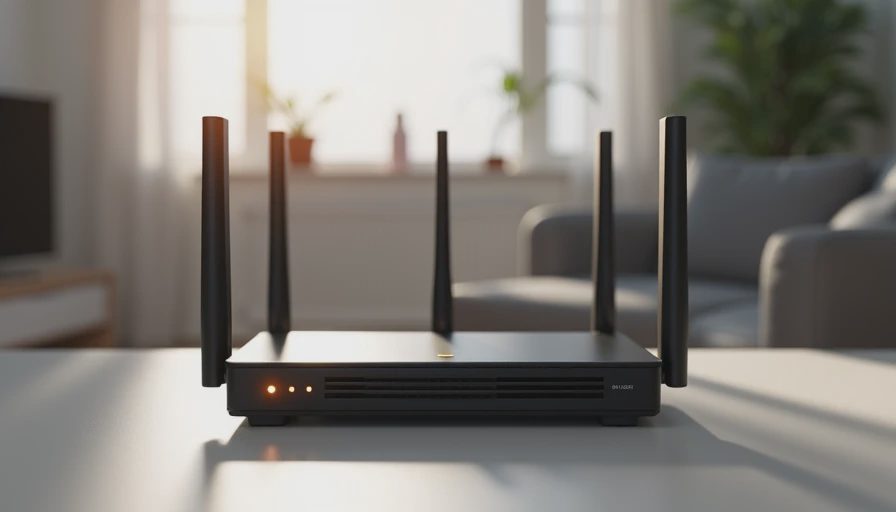
My Shortlist: Which Families Should Consider Each Type
Eero systems are appealing if your home already uses an Eero mesh network and you want a polished app with profiles, schedules, and content filters. The hardware is generally easy to install, but some advanced family features require a paid subscription. That recurring cost can land around $10 per month, depending on the plan and current pricing, so include it in a three-year budget.
Google Nest Wifi Pro can suit households that value straightforward management and a familiar Google Home app. It provides useful family controls, although parents wanting highly detailed reports or extensive category customization may find it less flexible than specialized services. Google’s ecosystem is convenient, but privacy-conscious households should read the account and data settings before turning on every optional feature.
The Gryphon Guardian and similar family-focused systems place parental controls at the center of the product. They can be a good fit when you want profiles, schedules, and filtering without stitching together several apps. The tradeoff is price. A dedicated family router can cost roughly $100 to $300 upfront, and premium services may add a subscription.
For a budget-conscious family, a standard router paired with Apple Screen Time, Google Family Link, Microsoft Family Safety, or console controls may be enough. That combination takes more maintenance, but it can cost nothing beyond hardware you already own. The best parental control router is not automatically the one with the longest feature list; it is the one you will still manage after the novelty wears off.
Privacy and Bypass Problems to Expect
Parental-control routers need to inspect some network activity to apply filters and schedules. That can mean the manufacturer processes domain requests, device names, usage information, or account details. Read the privacy policy, look for data-retention explanations, and disable optional analytics when the app allows it. “Secure” does not mean “collects nothing.”
If your household is anything like mine, someone will try to bypass this. A child may switch to cellular data, use a neighbor’s network, factory-reset a tablet, change the device name, or discover that the television still has an unrestricted guest profile. A router cannot enforce a rule on an offline or separately connected device.
Use a strong administrator password, enable two-factor authentication when offered, update router firmware, and keep the management app protected by your phone’s passcode. Put smart-home gadgets on a guest or separate network when possible. Never share the router administrator password with a child simply because the setup screen is inconvenient.
This is safer, but not necessarily easier. Explain what the router does and does not monitor. Older children deserve a clear answer about whether parents can see websites, times of connection, or only broad categories. Secret surveillance can turn a technical boundary into a trust problem.

Setup That Works in a Busy Household
Start by writing down every device that uses Wi-Fi. Include phones, school laptops, tablets, consoles, televisions, streaming boxes, printers, cameras, and the ancient tablet that appears only when somebody needs a charger. This inventory usually takes 15 minutes and prevents confusing a child’s Nintendo Switch with a parent’s work laptop.
Install the router or mesh system according to the manufacturer’s instructions, then update its firmware before creating family rules. Name profiles by person rather than by device. Assign each device carefully; a mislabeled console can make a bedtime schedule look broken when the real problem is that the rule applies to the wrong profile.
Create one weekday schedule first. For example, a child profile might have internet access from 6:30 a.m. to 8:30 p.m., with a later weekend end time. Add a bedtime pause, then test it with a tablet. Do not begin with 20 blocked categories and an elaborate reward system. A small rule that works is better than a sophisticated rule that generates nightly support tickets from your kitchen table.
Allow exceptions for homework, travel, software updates, and communication with caregivers. Most good apps offer a temporary pause or extra-time button. Decide in advance who can approve extra time and how long it lasts. Ten minutes is often enough to finish a game match without turning “just one more minute” into a second childhood.
Cost, Maintenance, and a Practical Buying Test
Compare the full cost over three years. A $180 router with a $5 monthly service costs about $360 before tax over that period. A $300 system with no subscription may be cheaper long term, while a free parental-control app on existing hardware may be the most sensible choice for a family on a tight budget. Also check whether a subscription is required for filtering, schedules, or only advanced reports.
Before buying, answer six questions. Can the system cover the size and shape of your home? Does it support enough wired ports for consoles or work equipment? Can profiles include multiple devices? Is there a quick pause button? Does it receive security updates? Can you export or delete account data? These questions reveal more than a glossy claim about being the best parental control router.
Plan on five minutes each week for maintenance. Review unknown devices, install updates, remove old tablets, and check whether a school platform was blocked accidentally. Every few months, revisit the rules with your children. Their needs change quickly: a six-year-old needs broad guardrails, while a middle-school student may need coaching about privacy, group chats, and suspicious links.
The Bottom Line for Parents
Choose a family-focused router if you want centralized controls and can accept a subscription or higher purchase price. Choose a mesh system with built-in profiles if reliable coverage is your first problem. Choose ordinary router controls plus device-level tools if saving money matters more than convenience.
The best parental control router should reduce arguments, not create a new technical job. Look for dependable schedules, clear privacy terms, easy device profiles, and a pause button you can find while making dinner. Test one rule, explain it to the family, and adjust when real life exposes the weak spot. That approach keeps your network safer, saner, and still within the family budget.



No comments yet — be the first to share a thought.