
A plain-english introduction to routers, networks, passwords, and family devices. In my household, that means looking at family Wi-Fi setup guide as a practical family system rather than a pile of settings. I am Lydia Carver, a Portland mom and former elementary-school-district library technology coordinator, and I test family technology in the middle of normal life: homework, breakfast, charging cables, forgotten passwords, and the occasional child who discovers a setting I thought nobody would notice. The goal is not to make technology disappear. It is to make the important decisions easier to understand and maintain. Safer, saner, and still within the family budget.
Think of Wi-Fi as the Family Road System
What I Look For
A family Wi-Fi setup guide does not need to begin with technical vocabulary. Think of your home network as a road system. The router directs traffic, Wi-Fi is the wireless part of the road, and connected devices are the cars. Your internet provider supplies the connection to the outside world, while the router decides how devices in the house reach it.
That distinction helps when something breaks. If every device loses internet access, I first suspect the connection, modem, or router. If one tablet cannot connect while everything else works, the problem may be local to that device. This simple split keeps a minor tablet problem from becoming a full Saturday afternoon of router resets.

The Four Pieces Parents Actually Need to Know
Most homes have four relevant pieces: the internet service, modem or gateway, router or mesh system, and connected devices. Some providers combine the modem and router into one box, which is perfectly workable for many families.
The table below is the mental model I keep in my kitchen notebook.
Piece | What it does | What parents usually need to manage |
|---|---|---|
Internet service | Connects the home to the wider internet | Plan, outage status, account |
Modem or gateway | Connects the home equipment to the provider | Power, status lights, provider support |
Router | Directs local network traffic | Wi-Fi name, password, security settings |
Devices | Phones, tablets, consoles, TVs and more | Updates, accounts, permissions |
A useful family Wi-Fi setup guide should also explain that changing the Wi-Fi password is not the same as changing a child's account password. They solve different problems.
A Calm First Setup
The Household Reality
When I set up a new home network, I resist the urge to change everything at once. First I confirm the router is updated, the administrator password is not the factory default, and the Wi-Fi uses a current security mode supported by the equipment. Then I connect a few normal household devices and make sure they work before adding every game console and smart speaker.
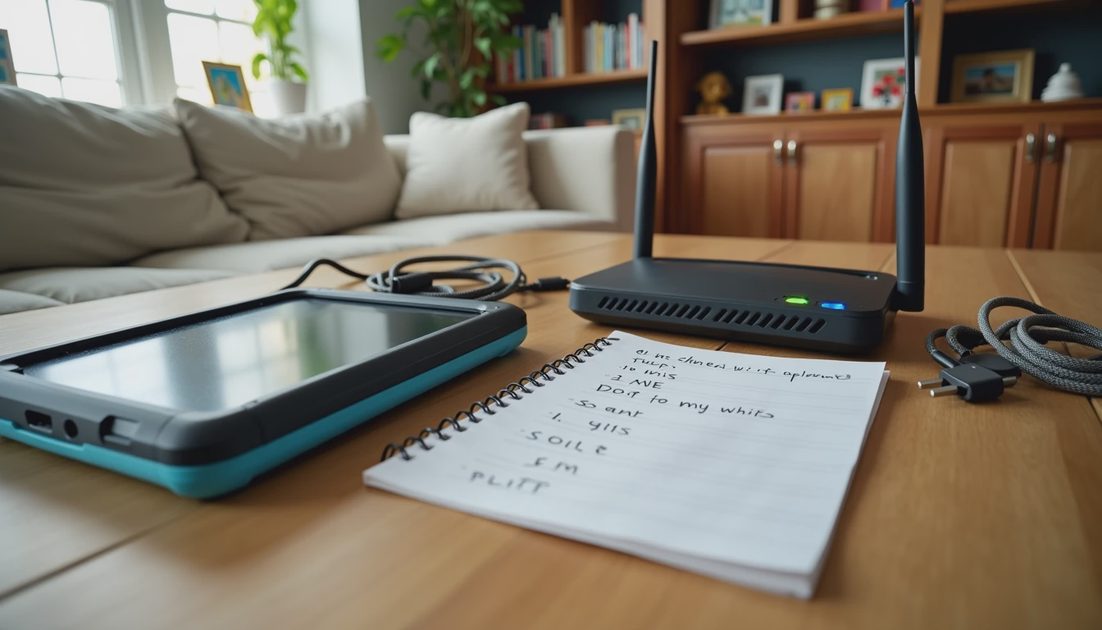
For families with children, I also make a short inventory of devices. You do not need a spreadsheet with serial numbers unless that helps you. A handwritten list such as “Ava tablet, Miles tablet, living-room TV, console, two phones” is enough to expose forgotten devices.
If you want to improve how you secure home Wi-Fi with kids, start with the equipment adults control: router administration, Wi-Fi credentials, firmware updates, and the list of connected devices. Those are easier to maintain than a pile of rules scattered across individual gadgets.
A Simple Way to Keep It Working
The final test is whether the setup survives an ordinary Tuesday. A family technology system should still make sense when a child is late for school, a parent is answering a work message, a charger has disappeared, and somebody needs a school website that was not on yesterday’s list. That is why I prefer small, documented changes over dramatic lockdowns.
For a monthly review, I return to the same questions: what changed, which devices are still in use, which accounts need attention, and which rule is causing unnecessary friction? If a control creates more work than value, I investigate whether the setting can be simplified. If a privacy choice is unclear, I look for the provider’s current documentation before making a decision. I do not assume that a feature works the same way across every device or account.
Jonah often provides the final test. If he can follow the setup without asking me where a setting lives, the system is probably understandable enough for our family. That is a modest standard, but it is useful. Parents should not need to become full-time IT administrators just to create reasonable boundaries at home.
If your household is anything like mine, someone will try to bypass this. Treat that moment as information. It may reveal a weak setting, an unclear rule, or simply a child who is curious. Fix the actual problem, explain the reason for the boundary, and move on. The goal is a workable family system, not a technology contest.



No comments yet — be the first to share a thought.